
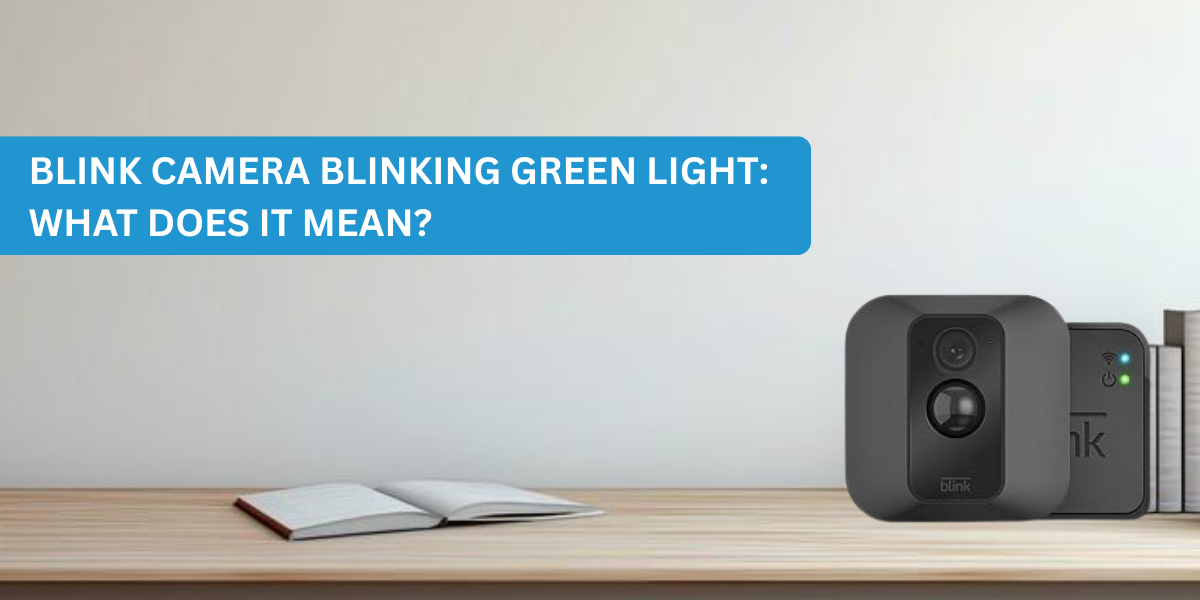
Blink Camera Blinking Green Light: What Does It Mean?
A blink camera blinking green usually means the camera is trying to connect to your Wi-Fi or reconnect to the Blink servers. If the green light keeps blinking for several minutes, there is likely a network or connection issue that needs to be fixed.
If you suddenly notice your Blink camera blinking green, don’t panic. This is one of the most common issues Blink users faces, especially after changing Wi-Fi, restarting the router, replacing batteries or setting up a new camera.
In most situations, the blinking green light simply means your camera is trying to establish a connection. Occasionally it reconnects within a minute. Other times, it continues blinking because something is preventing it from connecting properly.
The good news is that this problem is frequently easy to fix. You don’t need to be a networking proficient or spend hours troubleshooting.
I’ve personally seen this happen after changing my home Wi-Fi password. My Blink Outdoor camera kept blinking green for nearly ten minutes. I thought the camera had failed, but the solution was simply reconnecting it to the new Wi-Fi network through the Blink app. Five minutes later, everything was working again.
Let’s understand what the light is trying to tell you.
From what I’ve seen, this issue is almost always related to the camera’s network connection rather than a hardware failure. Many users assume the camera is defective when they first see the blinking green light, but in most cases, reconnecting to Wi-Fi or restarting the router solves the problem within a few minutes.
What a Blinking Green Light Means on a Blink Camera
The blink camera green light meaning is simple: Your Blink camera is trying to connect to your Wi-Fi network or communicate with the Blink servers. Think of it like your phone showing “Connecting…” when joining Wi-Fi.
During this time, the camera is trying to:
- Find your Wi-Fi network
- Connect to the internet
- Reach Blink cloud servers
- Sync with the Blink Sync Module (if your model uses one)
Normally, the blinking lasts less than a minute. If it continues blinking, there is usually a connection problem.
Common situations where you’ll see it
Situation | Green Light? | Normal? |
First setup | Yes | Yes |
Restarting camera | Yes | Yes |
Wi-Fi disconnected | Yes | Yes |
Router restarted | Yes | Yes |
Camera reconnecting | Yes | Yes |
Continuous blinking for several minutes | No | Needs troubleshooting |
Why Is My Blink Camera Blinking Green? Common Causes
Understanding the cause makes fixing the issue much easier.
Wi-Fi Connection Dropped or Unstable
This is the number one reason behind a blink camera flashing green light. Your camera depends on a stable Wi-Fi connection. If your internet drips for even a short time, the camera starts searching for the network again.
Signs
- Camera appears offline
- Live View won’t open
- Motion alerts stop
- Green light keeps blinking
Common reasons
- Internet outage
- Weak router signal
- Router reboot
- ISP issues
One thing many people don’t realize is that your Wi-Fi can appear to be working while the camera still struggles to stay connected. For example, your phone may browse websites without any issues, but a weak signal where the camera is mounted can still cause repeated connection attempts.
Router or Modem Needs a Restart
Sometimes the problem isn’t the camera. Your router may simply need a reboot. Home routers often develop temporary connection issues after running for weeks without restarting.
Quick fix
- Turn off the router.
- Wait 60 seconds.
- Turn it back on.
- Wait until internet returns.
- Check the Blink camera again.
I’ve had this happen after a power outage. Restarting both the modem and router solved the blinking green light immediately.
Sync Module Lost Connection
If you own Blink Outdoor, Indoor or XT cameras, they communicate through the Sync Module. A blink sync module blinking green often means it has lost its internet connection.
Screenshot:
Blink Sync Module with the blinking green LED visible.
Check the Sync Module
Solid blue | Working normally |
Blinking green | Connecting to internet |
No light | Power issue |
Continuous blinking | Network problem |
If the Sync Module cannot connect, none of the connected cameras will work properly.
Note: If you’re using a Blink Mini, it connects straight to your Wi-Fi and doesn’t require a Sync Module. Outdoor, Indoor, and XT-series cameras typically rely on a Sync Module, so troubleshooting steps may vary slightly depending on your model.
Network Credentials Changed (New Router or New Password)
Many users forget this. If you’ve:
- bought a new router
- changed your Wi-Fi password
- changed your network name (SSID)
- upgraded internet
your Blink camera still remembers the old network. That causes continuous blinking. This is one of the biggest reasons people search:
“Why is my Blink camera blinking green?”
The solution is reconnecting the camera to the new Wi-Fi through the Blink app.
Blink Server Outage
Although uncommon, Blink cloud servers occasionally experience temporary outages. During this time:
- Cameras cannot communicate with Blink servers.
- Devices may appear offline.
- Green lights may continue blinking.
Before spending an hour troubleshooting, check whether Blink services are experiencing an outage. Waiting a short time may resolve the problem automatically.
Weak Signal or Camera Too Far from Router
Distance matters. Blink cameras work only on 2.4 GHz Wi-Fi. Walls, metal doors, brick, concrete and large appliances weaken Wi-Fi signals. If your camera is mounted:
- outside the garage
- near a gate
- in a backyard
- on a detached building
- the signal may not be strong enough.
Signal strength guide
Signal Quality | Performance |
Excellent | Fast connection |
Good | Stable operation |
Fair | Occasional reconnects |
Weak | Blinking green, offline issues |
If possible, move the camera closer to the router or Sync Module.
How to Fix a Blink Camera Blinking Green Light (Step-by-Step)
Follow these solutions in order. Most users solve the issue within 15 minutes.
Step 1: Check Your Internet Connection
First, verify your internet.
Ask yourself:
- Can your phone browse websites?
- Does YouTube work?
- Are other smart devices online?
If not, the issue is probably your internet connection.
Step 2: Restart the Router
Restart both:
- Modem
- Wi-Fi router
Wait until the internet is fully restored before checking Blink.
Step 3: Check the Blink App
Open the Blink app.
Look for:
- Camera Offline
- Sync Module Offline
- Connection errors
If everything shows offline, the issue is probably with the network. If you’ve recently changed your Wi-Fi, use the option in the Blink app change WiFi network settings to reconnect the camera to the correct 2.4 GHz network.
Step 4: Confirm You’re Using 2.4 GHz Wi-Fi
This is extremely important. Blink cameras do not support 5 GHz Wi-Fi. They require:
- 2.4 GHz Wi-Fi
- WPA/WPA2 security
- Stable internet
Many dual-band routers combine 2.4 GHz and 5 GHz under one network name. If your router allows it, temporarily separate the two networks during setup.
Step 5: Move the Camera Closer
If you’re seeing:
- blink camera lost connection
- blink camera offline
- distance could be the issue.
Move the camera indoors temporarily. If the blinking stops, poor Wi-Fi coverage was the problem.
Common Mistake: Many users immediately reset their Blink camera when they see a blinking green light. In most cases, that’s unnecessary. Always check your Wi-Fi connection, router, and Sync Module first, as these are the most common causes of the issue.
Check out our additional detailed blog on how to reset your Blink camera.
Step 6: Replace the Batteries
- Although a blinking green light does not normally indicate low battery, weak batteries can still affect connectivity. Use fresh lithium batteries recommended by Blink. Avoid rechargeable batteries unless Blink specifically recommends them.
Step 7: Restart the Sync Module
If you’re using a Sync Module:
- Unplug it.
- Wait one minute.
- Plug it back in.
- Allow it to reconnect.
Many connection issues disappear after a simple restart.
Step 8: Update Firmware
Older firmware sometimes causes connection bugs. If updates are available, install them. Keeping firmware updated improves:
- connection stability
- security
- battery life
- overall performance
Step 9: Reset the Camera
If nothing works, perform a reset.
After resetting:
- reconnect Wi-Fi
- add the device again
- complete set up your Blink camera from scratch
Resetting removes old network settings that may be causing the issue.
Expert Advice: Before resetting your Blink camera, try the simpler fixes first. In my experience, factory resetting is rarely the first solution because it removes your saved network settings and requires setting the camera up again. Checking your Wi-Fi and Sync Module usually saves both time and effort.
When the Blinking Green Light Won’t Stop
If your Blink camera has been blinking green for more than 10–15 minutes after trying the fixes above, it’s time to dig a little deeper.
Use this checklist:
Check | Result |
Internet working | Yes |
Router restarted | Yes |
Camera within Wi-Fi range | Yes |
Using 2.4 GHz Wi-Fi | Yes |
Sync Module online | Yes |
Batteries replaced | Yes |
Camera reset | Yes |
Firmware updated | Yes |
If every item checks out and the light still won’t stop blinking, the camera may have a hardware issue or need additional support.
For more details about blink camera firmware updates you can check our another blog.
Blink Camera Light Meanings at a Glance
Different light patterns indicate different camera states.
Light Pattern | Meaning | Action |
Blinking Green | Connecting to Wi-Fi | Wait or troubleshoot network |
Solid Green | Connected | No action needed |
Red Light | Recording or setup (model-dependent) | Normal |
Blue Light | Sync or setup mode | Normal |
No Light | Power-saving or no power | Check batteries or power source |
Tips to Prevent Future Connection Problems
Here are a few habits that can save you time:
Tip | Benefit |
Keep router in a central location | Better Wi-Fi coverage |
Use 2.4 GHz Wi-Fi | Reliable Blink compatibility |
Update firmware regularly | Fewer bugs and improved security |
Avoid changing Wi-Fi name often | Prevents reconnection issues |
Check battery health every few months | Stable camera performance |
It’s also worth remembering that a blinking green light doesn’t always mean the camera itself is the problem. Temporary internet outages, Blink server maintenance, or changes to your home network can all interrupt communication. Looking at the bigger picture often helps you find the real reason much faster.
Frequently Asked Questions
Is a blinking green light bad?
No. A blinking green light is usually not a sign of hardware damage. It simply means your Blink camera is trying to connect to Wi-Fi or Blink servers. If it stops within a minute, everything is normal. If it continues blinking, check your internet connection and network settings.
Why does my Blink camera keep blinking green after I reset it?
If your camera continues blinking green after a reset, it usually means it still cannot connect to the correct Wi-Fi network. Verify that you’re using a compatible 2.4 GHz network, enter the correct password and ensure the camera is within range of your router or Sync Module.
Does blinking green mean my battery is low?
No. A blinking green light does not normally indicate low battery. It mainly signals that the camera is attempting to connect to Wi-Fi or Blink servers. However, weak batteries can sometimes affect connectivity, so replacing old batteries is still a good troubleshooting step.
How long should the green light blink before I worry?
A Blink camera should normally stop blinking green within about one minute during startup or reconnection. If the light continues blinking for more than 10–15 minutes, it usually indicates a network, Wi-Fi, Sync Module or configuration issue that requires troubleshooting.
Final Thoughts
Seeing a blink camera blinking green can be worrying at first, but in most cases, it simply means the camera is trying to reconnect to your network. The most common causes include weak Wi-Fi, router problems, changed network credentials or a disconnected Sync Module.
If you’ve recently changed your router, internet provider, or Wi-Fi password, start there before trying anything more advanced. I’ve seen many cases where users spent time replacing batteries or resetting the camera, only to discover the issue was simply that the device was still trying to connect to the old network.
From personal experience, most blinking green light issues are resolved by correcting Wi-Fi settings rather than replacing the camera. A few minutes spent checking your network can often save hours of hindrance.
Recent Post
Recent Posts
- Blink Camera Blinking Green Light: What Does It Mean?
- How to Use Blink Camera Without a Subscription (Step-by-Step Guide)
- How To Save Blink Clips To Your Phone/USB
- How to Use Blink Motion Zones: Stop False Alerts
- How to Connect Blink Camera to Google Home
- How to Add Multiple Cameras to One Blink System
- Blink Camera Black Screen Issue: Causes, Quick Solutions & Expert Tips
- How To Connect The Blink Camera To Apple Home
- How to Connect Blink Camera to Smartphone ?
- How To Connect Blink Camera To Smart Tv?
- Blink Camera Delayed Notifications. How To Fix It?
- Blink Camera Won’t Connect To Wi-Fi. How To Fix This?
- Blink Camera Time Zone Incorrect. How To Fix This?
- Why Blink Cameras Asking Old Phone Number For Verification?
- Why Blink Camera Battery Draining Quickly? Few Possible Reasons!
- How To Fix Blink Camera Error Message Issue?
- How To Fix Blink Camera False Motion Alert Issue?
- Blink Camera Cloud Storage Issue. How To Fix This?
- Blink Camera Not Working After WiFi Change. How To Reconnect?
- Blink App Not Connecting to Camera. Few Reasons Here!
- Why Blink Camera Not Syncing with Sync Module? Fix Here!
- Why Blink Camera Not Showing Clips? How To Fix This?
- Blink Camera Firmware Update: Fix Issues, Update Faster & Avoid Errors
- Blink Floodlight Wired Camera Not Working. How To Fix This?
- How To Resolve HTTP 406 Errors For Blink Camera?
- Blink Camera Night Vision Not Working. Reason and Solution Here!
- How To Connect Blink Camera To Alexa? Easy Guide Here!
- Why Is My Blink Camera Not Detecting Motion?
- Is Your Blink Camera’s Live View Not Working? Fix It Quickly!
- Why My Blink Mini Stops Working Every Night?
- How to Install Blink Home Monitor App: Step-by-Step Guidance for Beginners
- Blink Security Camera Not Connecting To The Internet. Get Solution Here.
- Why Blink Camera Is Not Recording For a Long Time. How To Fix It?
- How To Fix Blink Camera Offline Issue? Tips and Tricks
- Why Is My Blink Camera Flashing Red? Common Causes and Fixes